
Fix Windows 11 Update Error 0x800F0922 (and 6 Related Codes)
The update screen tells you it didn't succeed. Error 0x800F0922. You search for it, get a wall of forum posts, try three things from a 2019 thread, and the exact same error is waiting for you again.
That code shows up more than any other Windows 11 update error I deal with. Two customers' machines have hit it in the last two months alone — a Dell 3020 and an HP 250 G9 — and on the Dell I genuinely wasted an hour on the wrong fixes before going back to basics. Everything below is that basic sequence, in the order I actually run it now.
Saw 0x800704D0, 0xC1900101, 0x800F0923, 0x8007007E, 0x80070057, or 0x80004004 instead? Same boat. They're all one family — Windows Update breaking partway through — and the fixes below cover all seven.
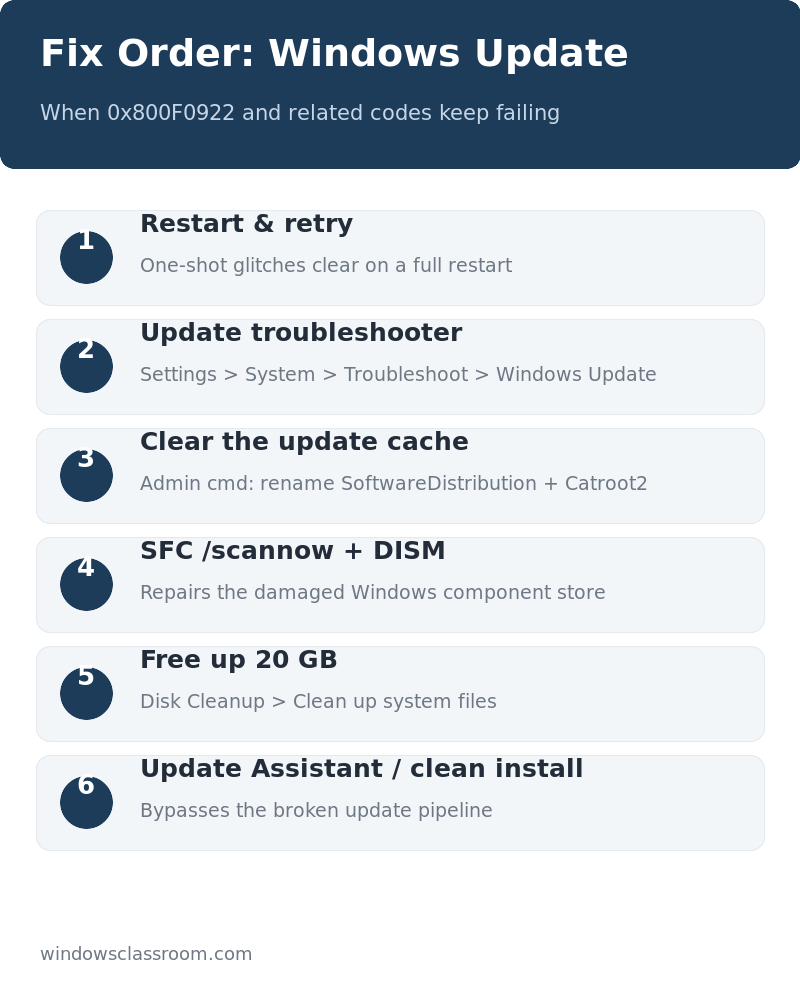
Table of Contents
What the code is actually saying
Strip off the hex and 0x800F0922 means one thing: Windows Update hit a problem checking or installing a file in the component store. In plain words, part of the update pipeline broke — a file Windows trusts got damaged, a driver is stuck mid-update, or the download itself went bad halfway.
Here's the frustrating part. The code tells you *where* it broke, not *why*. Ten different root causes share this one number, which is why "search the error" advice spins you in circles.
The fast way to narrow it down is to ask when it started:
- Right after a big feature update? Leftover junk from that update is the usual suspect.
- Failing on every monthly patch for months? The component store — the file cache Windows builds updates from — is probably corrupt.
- One machine in the house, and the neighbor's PC updates fine? That machine has a specific problem. A driver, a disk, a service.
I use that split to pick a starting point. The full sequence follows.
Before you start
Two quick things.
First, back up anything you can't afford to lose. Every step below touches system files, and "mostly safe" is still "mostly." Ten minutes with a USB drive.
Second: business or school PC? Check with IT before the heavier steps. Group policy loves to fight them, and an IT ticket is cheaper than a broken login.
Fix 1: Run the built-in troubleshooter
Start here because it's free, and it clears a surprising number of stuck update states.
- Open Settings > System > Troubleshoot > Other troubleshooters.
- Find Windows Update, press Run.
- Let it finish — five to ten minutes — then go to Settings > Windows Update and click Check for updates again.
On that Dell 3020, this was the entire fix. The troubleshooter found a stalled service, restarted it, and the next update ran clean. Cost me nothing. Do it first.
Fix 2: Clear the Software Distribution folder
If the download itself is the problem — the update dies at some percentage, or the error appears instantly every time — the cached download is usually poisoned. Delete it and Windows fetches a fresh copy.
- Press Win + R, type
services.msc, hit Enter. - Right-click Windows Update > Stop. Do the same to Background Intelligent Transfer Service (BITS) and Cryptographic Services.
- In File Explorer, go to
C:WindowsSoftwareDistribution. - Delete everything *inside* that folder. Not the folder itself — the contents.
- Back in services.msc, start all three services again.
- Restart, then Check for updates.
This is fix number two in my own routine, and it works more often than the fancy commands people copy from forums. If the update re-downloads and installs, you're done.
Fix 3: Repair the component store
The heavy one. When the damage is in the system files rather than the download, this is what actually repairs a Windows 11 update error 0x800F0922. Two commands, from an administrative terminal (search "cmd", right-click, Run as administrator):
DISM /Online /Cleanup-Image /RestoreHealthLet it run to 100%. Twenty to thirty minutes, sometimes more. The percentage will appear stuck near 40 or 80 for what feels like forever. It isn't. Don't cancel.
Then:
sfc /scannowSame patience. When both finish, restart and retry the update.
If DISM throws its own error — 0x800F0922 is even possible *inside* DISM — the source it's comparing against is damaged too. That's what fix 4 is for.
Fix 4: Rebuild the update stack with the Update Assistant
When the component store is too broken for DISM to fix itself, Microsoft's Update Assistant rebuilds the whole update pipeline instead of patching it.
- Get it from Microsoft's official Windows 11 download page — search "Windows 11 Update Assistant" and stay on microsoft.com, not a third-party mirror.
- Run it. It checks the PC, downloads the current feature update, and installs it as a full upgrade pass.
- Follow the prompts. Several restarts.
Treat it like a minor in-place upgrade: back up first, laptop plugged in, an hour of your time. For a badly damaged store, this is the fix that ends it.
Fix 5: If one specific update is the whole problem
Some 0x800F0922 reports are really "this one cumulative update won't install." If you can see which one (the KB number shows in the error window or under Update history):
- Settings > Windows Update > Update history > Uninstall updates — remove it.
- Wait a few days. Microsoft usually ships the same fixes in next month's cumulative package.
- Install the newer one when it arrives.
Don't want to wait? Windows Update > Advanced options > Pause updates (up to five weeks), grab the superseding build from the Microsoft Update Catalog manually, install it, unpause.
Fix 6: Check the disk. Yes, really.
A damaged or nearly full system drive disguises itself as an update error more often than people expect. Windows wants several gigabytes of headroom, and a disk with pending bad sectors will fail file operations mid-install — same error code, different cause.
- Settings > System > Storage — at least 20 GB free on C:.
- Admin terminal:
chkdsk C: /scan. Read what it reports. - Pending or unrecoverable errors? Schedule the full check at next boot and let it run.
Boring step. I'll give you that. But it's the one that catches what everything else misses. Third machine this year: update failed with 0x800F0922 every time, scan showed the drive dying. Backup, replace drive, update fine.
Why the error keeps coming back
Because the code is a symptom, not a cause. 0x800F0922 means "the update pipeline broke somewhere", and Windows Update's answer to failure is to simply try again — a few times a day, every day. If the real problem (a damaged component store file, a poisoned download cache, a stuck service) is still sitting there, every retry hits the same wall and prints the same number.
Two loops make it worse. First, each monthly cumulative update builds on the last one: if file X in the store is damaged, every new update depends on that same file X, so *every* monthly update fails until you repair the store with fixes 3–4. One bad month does not heal itself. Second, the retry re-downloads the same package from the same server — if your copy went bad halfway, the next one usually will too, until you clear the SoftwareDistribution cache (fix 2) and force a fresh fetch.
So if the error "came back" after you'd gotten one update through: it didn't come back. It was never repaired — it was only papered over for one build. Run the component store repair once, properly, and the monthly failures usually stop.
The rarer variants, briefly
0x80070057 (corrupt data in a cabinet file) — almost always cured by the clean download in fix 2. 0x8007007E (a module failed to load) — usually a missing VC++ redistributable or damaged system DLL. Fixes 3 and 4 cover it. 0x80004004 (operation didn't complete in time) — something is blocking the update service. Close antivirus and other background extras, then run fix 1. 0xC1900101 (installation didn't complete in time, rolled back) — the update tried, failed, and auto-reverted. Check disk space first, then fixes 3 and 4.
FAQ
Do I have to run all six in order? No. Go top to bottom and stop at the one that works. In my experience, fix 1 or fix 2 ends most of these, and fix 3 or fix 4 ends the rest.
Will the update uninstall my apps? No — updates keep installed programs. They can clash with a few stubborn ones (old antivirus is the classic), which is why closing security software before a big update helps.
My PC is slow AND updates fail. Related? Sometimes. Low disk space and a struggling drive cause both. Check the space first; it's the cheapest fix on this list.
How often does Windows 11 get updates? Monthly security patches, plus a big feature update roughly once a year. This error family shows up most in the weeks right after a feature update.
Is it safe to let Windows roll back on its own? Yes — a rollback is a safety feature, not a crash. But if it rolls back twice in a row, stop looping and run fixes 3–4.
One last thing
Past all six? The next move is a clean install from the Media Creation Tool, files backed up. It has resolved every update-stack failure I've ever sat with, and it's an afternoon, not a weekend.
And if the update that fought you was a feature update, the follow-on problems have their own guides: blue screens after a Windows 11 update and the BitLocker recovery key screen that can show up at the next boot.
Follow Us On: