
Blue Screen After a Windows 11 Update? Fix the Top 8 Codes
The PC reboots, you sit down, and it's a blue screen with a stop code you've never seen. The update finished fine an hour ago. Now the machine won't do much of anything.
I'd guess the odds are high that this is a driver, not a dying PC. Of the machines that have come back to me after an update with a blue screen, the driver was the cause more often than I can count. The rest split between storage drivers and — rarely — hardware that the update was honest about.
The good part: a blue screen after a Windows 11 update is one of the most fixable problems in Windows, because the update itself tells you what changed. Find your code below and jump to it.
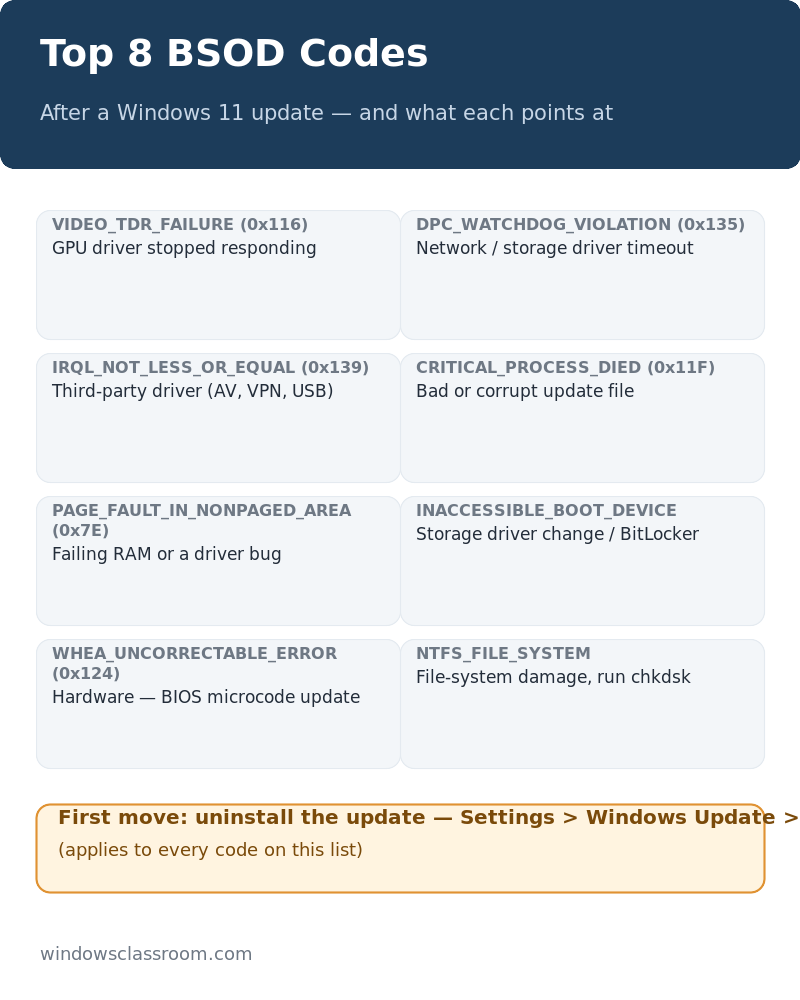
Table of Contents
Step 1: Identify your stop code (60 seconds)
Read the STOP CODE text at the bottom of the blue screen — it looks like DRIVER_POWER_STATE_FAILURE or CRITICAL_PROCESS_DIED. Write it down or photograph it. That string is the whole diagnosis, and it changes the fix completely.
Can't get back to a working screen to look it up? No problem. The next section covers every common post-update code, so work through the list.
Can't even get to Step 2? Boot into Safe Mode first: at the login screen hold Shift while clicking Power > Restart, then Troubleshoot > Advanced options > Startup settings > Restart, press 4 (or 5 if networking is needed). The fixes below all work from Safe Mode.
Step 2: Match your code to a fix
### DRIVER_POWER_STATE_FAILURE
The single most common post-update BSOD, and the easiest one. A driver — usually the graphics card — isn't handling a sleep or wake transition.
Fix: open Device Manager, expand Display adapters, right-click your GPU (NVIDIA/AMD/Intel), Update driver > Search automatically. If it's already current, go to Properties > Driver > Roll Back Driver when the button is active — that undoes exactly what the update changed. Then test: sleep, wake, sleep again.
On my own work machine (a Ryzen 5 desktop, Intel integrated graphics), the update that broke mine fixed itself the same way — rolled the iGPU driver back one version and the sleep crashes stopped. A week later the manufacturer had published a corrected driver.
### WHEA_UNCORRECTABLE_ERROR
Hardware-level. After an update it usually means a driver is misreading a CPU or memory controller, but the code is the one Windows uses for real hardware faults too, so treat it seriously.
Fix: roll back the most recent driver changes first (Display adapters, then Network adapters). If it returns within a day or two, run Windows Memory Diagnostic (search "Windows Memory Diagnostic", restart to test) and watch for the error repeating in Safe Mode. If it does — especially with fan noise or a burning smell — the hardware is telling you something and a technician visit beats a data-loss weekend.
### CRITICAL_PROCESS_DIED / SYSTEM_THREAD_EXCEPTION_HANDLED
A system process stopped responding — often a corrupted system file or a new program that doesn't play well with the fresh update.
Fix: admin terminal, run sfc /scannow, let it finish, restart. If that finds nothing, the newest third-party app or service is the suspect — uninstall anything installed in the last 48 hours (antivirus toolbars and "PC optimizer" utilities are the usual culprits) and test again.
### IRQL_NOT_LESS_OR_EQUAL / DPC_WATCHDOG_VIOLATION
A driver ran at the wrong privilege level — classic driver conflict. The blue screen sometimes names the file (like nvlddmkm.sys for NVIDIA) — if it does, that filename is your answer.
Fix: update or roll back that driver in Device Manager. When the screen names no file, update the four usual suspects in order: graphics, network, storage controller, chipset. Restart after each one. One of them stops the crashes; that's your driver.
### PAGE_FILE_HEAP_CORRUPTION / MEMORY_MANAGEMENT
Memory or disk problems wearing a driver's mask.
Fix: run the memory diagnostic first. If memory tests clean, run chkdsk C: /scan from an admin terminal and check Settings > System > Storage for a disk reporting errors. Both tests take time — an hour of patience here saves a week of guessing.
### KMODE_EXCEPTION_NOT_HANDLED
A kernel-mode driver bug, frequently caused by security software talking to a just-updated system layer.
Fix: if you can reach Safe Mode, temporarily uninstall third-party antivirus (Windows Security is enough for a day or two), restart normally, and test. If the crashes stop, the vendor's updated build for the new Windows version is the fix — check their site, don't wait for auto-update.
### c000021a / STATUS_STACK_BUFFER_OVERRUN
The system shell crashed or a driver overwrote its own stack. After an update, this is usually a mismatched driver or a damaged user profile.
Fix: try a new local user account (Settings > Accounts > Other users > Add account) and log into it. If the new account is stable, your profile's shell files took damage during the update — move your files over and rebuild the old account. If both accounts crash, run sfc /scannow plus a driver pass (Step 3).
### It keeps rebooting and I can't name the code
If the machine loops before you can read the screen, boot Safe Mode (the Shift+Restart trick from Step 1) and check Settings > Windows Update > Update history > Uninstall updates — remove the most recent update. If the machine holds in normal mode after that, you've found the bad build. Reinstall it a few weeks later when Microsoft ships the cumulative fix.
Step 3: If nothing above sticks
Three things, in this order:
- Roll the update back. Settings > Windows Update > Update history > Uninstall updates — remove the feature or quality update that started it. You keep your files and apps; you lose that update's fixes for a few weeks.
- Repair install. Run the Windows 11 Update Assistant from Microsoft's download page as an in-place upgrade. It replaces system files, keeps everything else, and clears update damage that SFC misses.
- Create a recovery drive and reset. If the machine still misbehaves, Settings > System > Recovery > Reset this PC > Keep my files is the clean end-state.
FAQ
Did the update kill my data? Almost never. Updates reinstall Windows on top of itself; files and apps survive. The data-loss cases I've seen were drives already failing — the update just made it obvious.
Why did it work for days and only now blue-screen? Because most failures are *triggered*, not *caused*, by the update. The broken sleep path, the marginal RAM stick, the driver conflict — they were there before; the update changed timing enough to trip them. That's why rolling the update back helps even when the update "wasn't the cause."
Should I just wipe and reinstall Windows? It's the guaranteed fix and the most expensive one (time). Try Steps 2 and 3 first — the majority of post-update BSODs end at the driver rollback or the repair install.
My GPU driver won't install after the update. Now what? Clean-utility it: the GPU maker's cleanup tool (NVIDIA's DDU in Safe Mode is the standard), then install the driver fresh. Half of stubborn post-update driver installs end there.
Will the next monthly update fix it? Often, yes — Microsoft patches the worst driver conflicts within one or two monthly cycles. But you don't have to white-knuckle it: the fixes above get you there sooner.
One last thing
A blue screen after an update is bad news with a good ending, nine times out of ten. Read the stop code, match the fix, and give the driver the benefit of the doubt first — it's the villain far more often than the hardware.
If the update brought more than one problem, the 0x800F0922 update error guide handles the ones that block the install, and the BitLocker recovery key guide covers the screen that can show up right after a bad reboot.
Follow Us On: